
Search Properties, xClasses, and xProperties
You can search for properties, xClasses, and xProperties associated with items using Simple, Advanced and AML search. The xClass and xProperty criteria can also be saved to a Saved Search.
Using the Column Selector in Main and Relationship grids
The Main and Relationship grid toolbars contain the Refine Search icon  . When you click the icon, a dialog box similar to the following appears. The dialog contains 2 columns – Properties and Classifications.
Note: The data displayed in the following dialog uses example data.
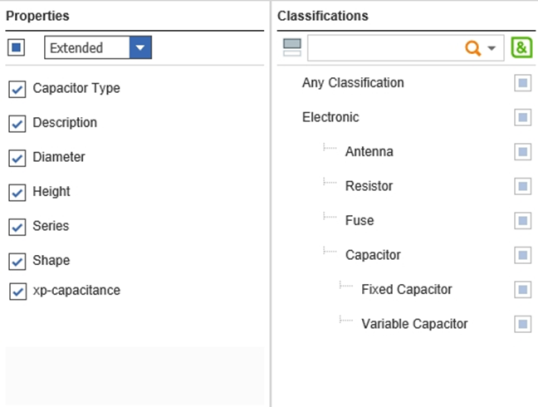
Figure 17.
In the Main Grid, the Properties column displays a list of properties associated with the item. Select one of the following from the dropdown list:
-
All (the default) displays the standard properties, explicitly-defined xProperties, and extended properties associated with an item.
-
Standard displays the standard properties and explicitly defined xProperties.
-
Extended displays all of the xProperties assigned through the xClassification trees.
In the Relationship grid the Properties column displays a list of properties associated with the item. Select one of the following from the dropdown list:
-
All (the default) displays all the properties.
-
Standard displays all Properties where hidden2 = false and explicitly defined xProperties on the Related ItemType
-
Relationship displays Properties where hidden2 = false as well as explicitly defined xProperties andxProperties assigned through xClass Trees for the Relationship ItemType
-
Extended displays all the xProperties that are assigned through xClassification Trees for the Related ItemType
The standard properties that you select appear as column headings in the Main and Relationship grids. Deselecting properties removes them from the grid.
The Classifications column displays the xClassification Tree associated with an item.
To search for several xProperties or xClasses, click the AND icon  . Click the OR icon
  to search for a particular xProperty or xClass.
-
For example if the User searches for xClass X OR xClass Y the search should only return Items classified as X or items classified as Y, or Items classified as both X and Y. And Items classified by X and Z. And Items classified by Y and Z. And Items classified by X, Y and Z. etc. As long as an item is classified by X or Y, it should be returned no matter what else it is classified with.
-
If the User searches for xClass X AND xClass Y the search should return Items classified as both X and Y and Items classified by X, Y and Z.
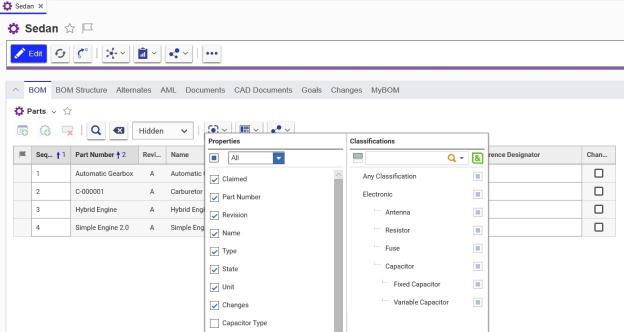
Figure 18.
Filtering the Property Column List by xClasses
You can search for xProperties that are only associated with a particular xClass by filtering xProperty Columns by selecting xClasses. When you select an xClass in the Classifications Column, the xProperties associated with that xClass appear in the Properties column. If you select multiple xClasses, the xProperties for all of the xClass selections are displayed in the Properties Column. Unselecting the “xClass Filter” control for xClasses causes the assigned xProperties for those xClasses to not appear in the Properties column.
As shown in the following screenshot, selecting the filter for the “Fixed Capacitor” xClass results in the xProperties associated with the Fixed Capacitor xClass appearing in the Properties column. The filter icon for each xClass is located to the right of the xClass name. The default state of the icon is grey (unselected). When you select the filter for a given xClass, the filter icon appears in orange.

Figure 19.
xClass Search Options
In the Classifications Column of the Column Selector, the following states (1-7, shown in the diagram below) are available for selecting the xClass to include in the Search criteria.
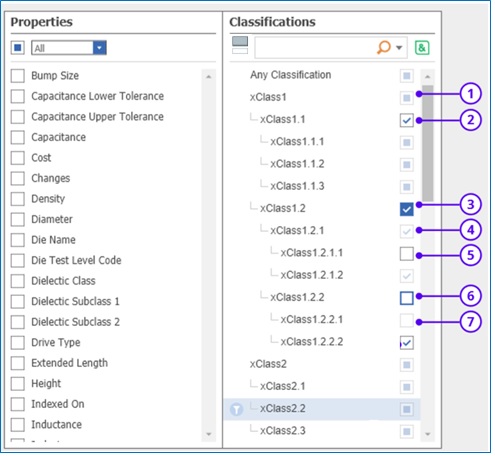
Figure 20.
The check boxes on the right of the xClass name enable you to select the xClass to include in the search criteria. The xClass you select for the search is displayed in the xClass bar. For more information refer to section Using The xClass Bar.
Figure 18 shows the different states for the checkboxes. Each of these states is described here:
-
Unselected + Indeterminate - This is the default search state for all xClasses. The indeterminate symbol indicates that it is .inactive. Grid results may or may not be classified by this xClass.
-
Checked - When you click the box, the check symbol that appears indicates that the xClass has been included as a single search criterion.
-
Hard Checked (include subclasses) — When you click an xClass checkbox twice the inverted colors on the check symbol indicate that both this xClass and all associated subclasses are included as search criteria. (Only available while using ‘AND’ logic).
-
Soft Checked - The normal check symbol is grayed out to indicate that the xClass is included as a single search criterion. You cannot click to this state. It only appears if a parent xClass was set to “Hard Checked”.
-
Unchecked - The empty box indicates that the search results must ‘NOT’ include this xClass.
-
Hard Unchecked (exclude subclasses) - The blue border around the empty box indicates that the search results must ‘NOT’ include this xClass or any of its subclasses. (Only available while using ‘AND’ logic).
-
Soft Unchecked - The empty box indicates that the search results must ‘NOT’ include the xClass. You cannot select this state. It only appears if a parent xClass was set to “Hard Unchecked”.
The Click-through cycle for xClasses that have subclasses where ‘AND’ logic is active starts with the default “Unselected + Indeterminate”. It then progresses through Checked, Hard Checked, Unchecked, Hard Unchecked, then back to Unselected + Indeterminate.
The Click-through cycle for all other conditions, beginning with the default Unselected + Indeterminate is Checked, Unchecked, and then back to Unselected + Indeterminate.
Clicking anywhere outside the menu closes the menu.
Clicking Run Search from the search toolbar executes the xClass search criteria and returns the results.
Clicking Clear Search Criteria from the search toolbar, clears all xClass search criteria.
Any Classification – Users can also search Items with Any or No Classification as shown in the following diagram.
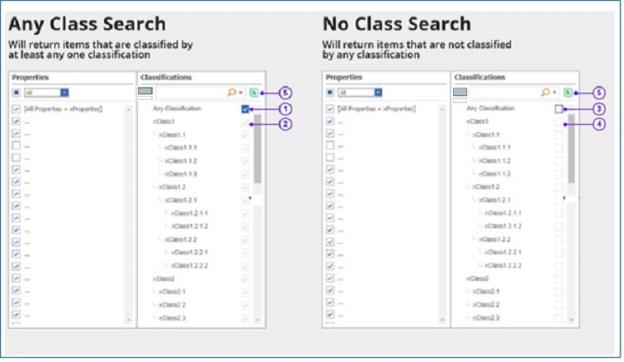
Figure 21.
-
Set “Any Classifications” to Hard Checked to search for items that are classified by at least one xClass from the xClassification Trees.
-
When you select “Any Classifications” then all the xClasses in the Trees should be Soft Checked.
-
Set “Any Classifications” to Hard Unchecked to search for items that are not included in any classification.
-
After setting “Any Classifications” to Hard Unchecked, all xClasses should display “Soft Unchecked”.
The logic used has no effect on searching by “Any Classification” — if set to either “AND” or “OR” the operation functions the same.
Using The xClass Bar
When you select xClasses and click the  icon, they appear in the xClass bar that appears in the Main grid as shown here:
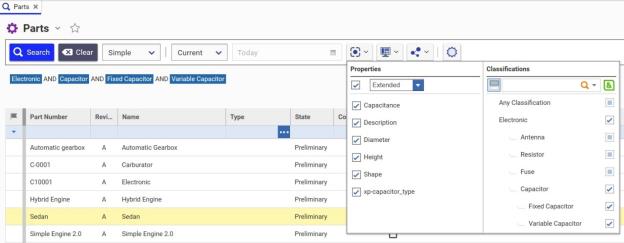
Figure 22.
The Relationship grid displays xClasses and xProperties this way:
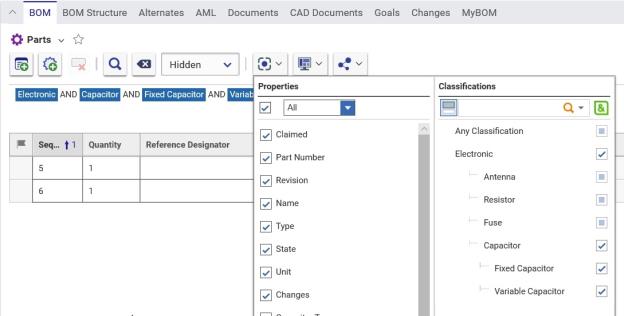
Figure 23.
When you perform an Advanced search, the grid displays xClasses like this:
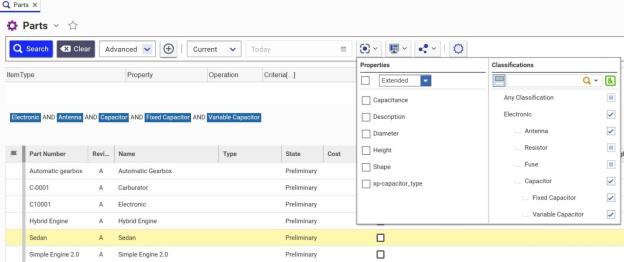
Figure 24.
For an AML search, xClasses appear this way:
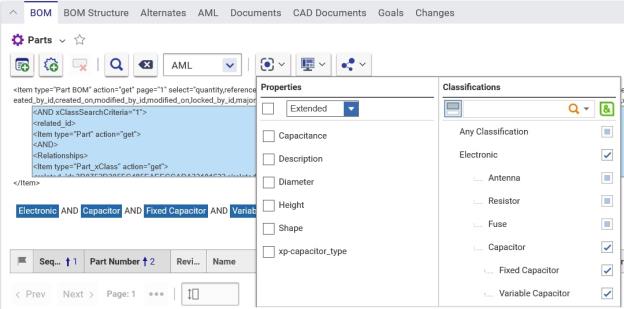
Figure 25.
Searching for xProperties across Multiple ItemTypes
You can assign xProperties to items regardless of type. You can search for items that have xProperties associated with them using the following procedure:
-
Select My Innovator à Extended Property Search from the TOC. The following menu appears:
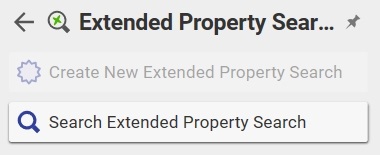
Figure 26.
-
Select SearchExtended Property Search. The search grid appears.
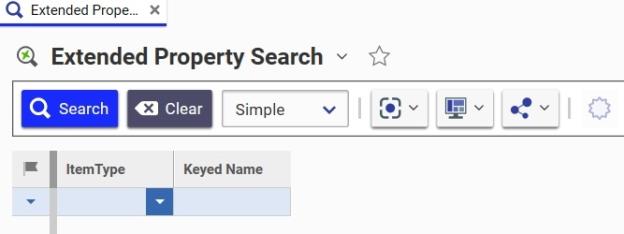
Figure 27.
-
To search for items associated with a specific ItemType, you can either enter the ItemType Name or select it from the dropdown list in the ItemType column. To see a list of all items that have xProperties associated with them, leave the ItemType column empty and click the Search icon.

Figure 28.
-
Select an item in the grid and click the Select Columns icon to see a list of Properties, xProperties, and xClasses associated with the selected item.
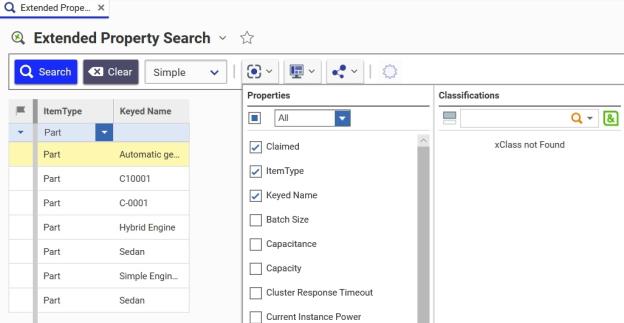
-
Figure 29.
-
Select Extended from the Properties dropdown list to see the list of extended properties associated with the item.
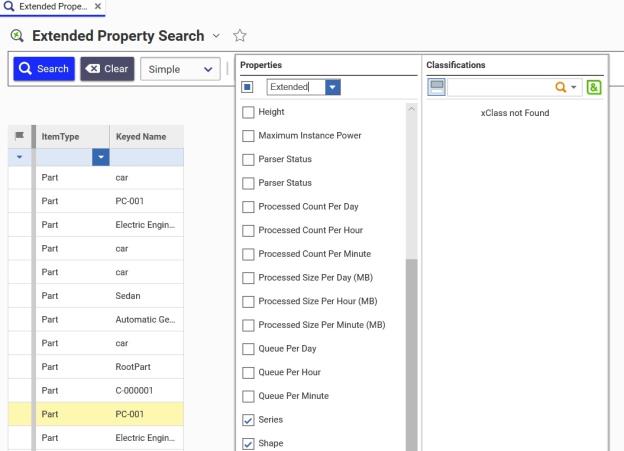
Figure 30.
Performing an Advanced Search
You can use the Advanced Search option to search for values associated with:
-
xProperties
-
xClasses
-
Item Classifications
-
Explicit Permissions
The following procedure uses xClassification Tree as an example:
-
Select Extended Classification > xClassification Trees from the TOC. Clicking the Search icon
 takes you directly to the Search grid. Clicking xClassification Trees takes you to the following menu:
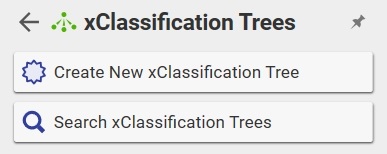
Figure 31.
-
Click SearchxClassification Trees. The Search Grid appears.
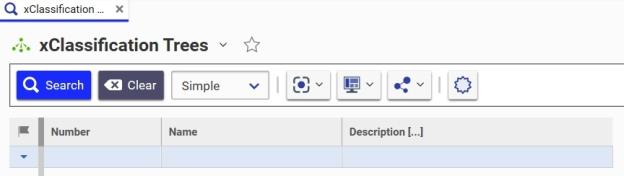
Figure 32.
-
Select Advanced from the Search dropdown. The xProperty Selector row appears, enabling you to search for xProperties associated with specific ItemTypes.
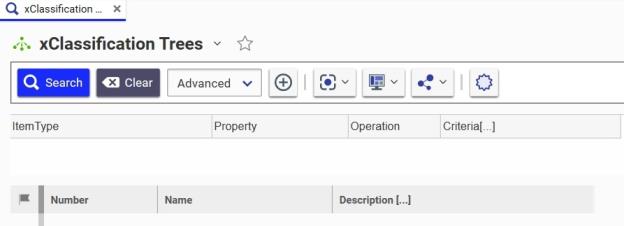
Figure 33.
-
Click the Add Criteria icon
 to add your search criteria.
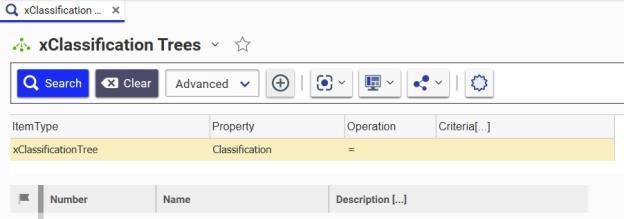
Figure 34.
-
Select the ItemType from the dropdown list:
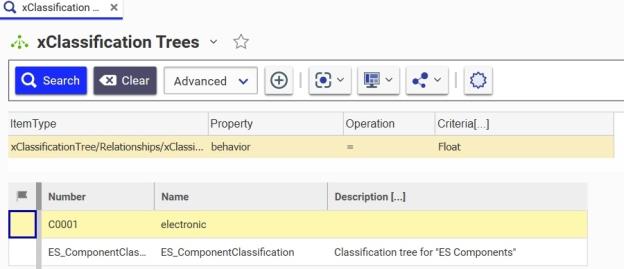
Figure 35.
-
Select the Property cell and click the ellipses. The Property dialog box appears.
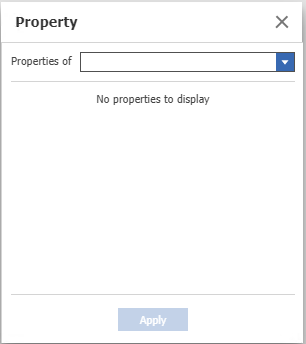
Figure 36.
-
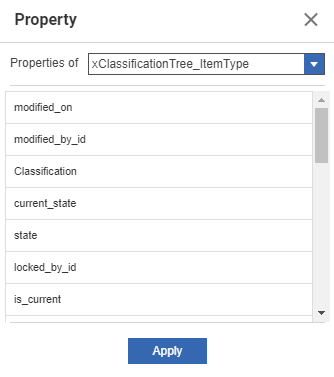
Select xClassification Tree/Relationships/xClassificationTree_ItemType from the Properties list. A list of properties associated with the ItemType appears.
-
Figure 37.
-
Select behavior and click Apply.
-
Click the dropdown button in the Operations cell and select =.
-
Select the dropdown button in the Criteria cell and select Float.
-
Click Search. A list of xClassification trees associated with the specified criteria appears in the grid.
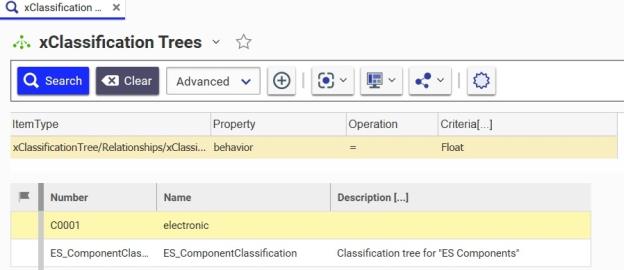
Figure 38.