
Package Definition Tool
The Package Definition Tool allows creating an instance of the Package Definition in the database. This is a temporary utility that is created only for the situations when Aras Innovator has a set of items that makes up a Package Definition, but these items are not included as part of a Package Definition. Generally, this only occurs when the database was upgraded from a version of Aras Innovator that pre-dated the corresponding use of Package Definitions for this solution.
Note: The Package Definition Tool does NOT import anything into the database. It creates a Package Definition in the database that later can be used for managing the Package Elements.
The Package Definition Tool GUI
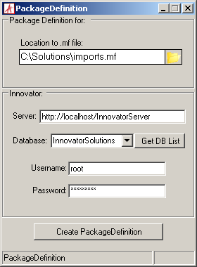
Figure 5.
-
The first step in using this utility is specifying a manifest file that contains information about what packages and from where on disk should be defined in the database.
-
The next step is to establish the connection parameters:
-
Server: The URL used to login to Aras Innovator. A default install uses a URL like http://localhost/InnovatorServer
-
Database: The database you wish to define the package in. This field is populated by selecting the ‘Get DB List’ button, after filling out the Server URL field.
-
Username: The login of the user that is used to log into Aras Innovator. This is usually the root or admin logins when working in a non-production or upgrade environment.
-
Password: This is the password for the login filled out in the Username field.
After all of this information is filled out, click Create Package Definition to begin.
The Package Definition Tool Command Line
Alternately, the Package definition tool can be executed from the command line. The command line parameters can be obtained by typing ‘/?’ as the command line parameter.
Usage:
PackageDefinition.exe {server url} {user} {password} {db} {path to manifest file}
server url server's URL (e.g. http://localhost/InnovatorServer)
user user's login
NOTE: login must have root or admin privileges
password user's password
database database's name
path to manifest file location of the manifest file
NOTE: the specified path must exist
EXAMPLE:
C:\PackageImportExportUtility\PackageDefinition\PackageDefinition.exe http://localhost/InnovatorServer root innovator InnovatorSolutions C:\Solutions\core_imports.mf