
Document Types
The first tab within the Office Connector Settings dialog is Document Types. A Document Type refers to the combination of an ItemType and Classification used to manage an Office file. Any Aras ItemType (not just Document) can be used to manage Office documents if it is properly configured here in these settings. It is important to understand that the standard settings provided in this Tab are examples only. It is expected that they will be configured to match requirements for an organization.
The standard settings refer to four Classification Values of the Document ItemType, as shown here. The standard release automatically includes these Classification Values (Ad-hoc, General, Product, and Project) in the Document ItemType.
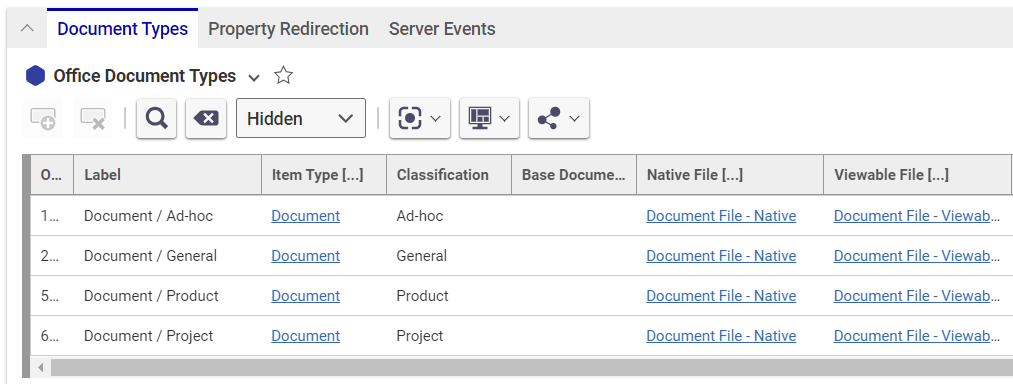
Within the tabular view, the Order property can be set to control the sort order for the Document Types. The sort order is the order in which users see the Document Types listed when they create new documents from the Aras Office Connector.
For the rest of the Document Type settings, it is more practical to edit them within a form rather than the tabular layout:
-
To edit an existing Document Type in the relationship grid, right-click to display a context menu. Select Document Types and Open.
-
To create and edit a new Document Type, click the Add Row button, select the new row, and select Document Types and Open.
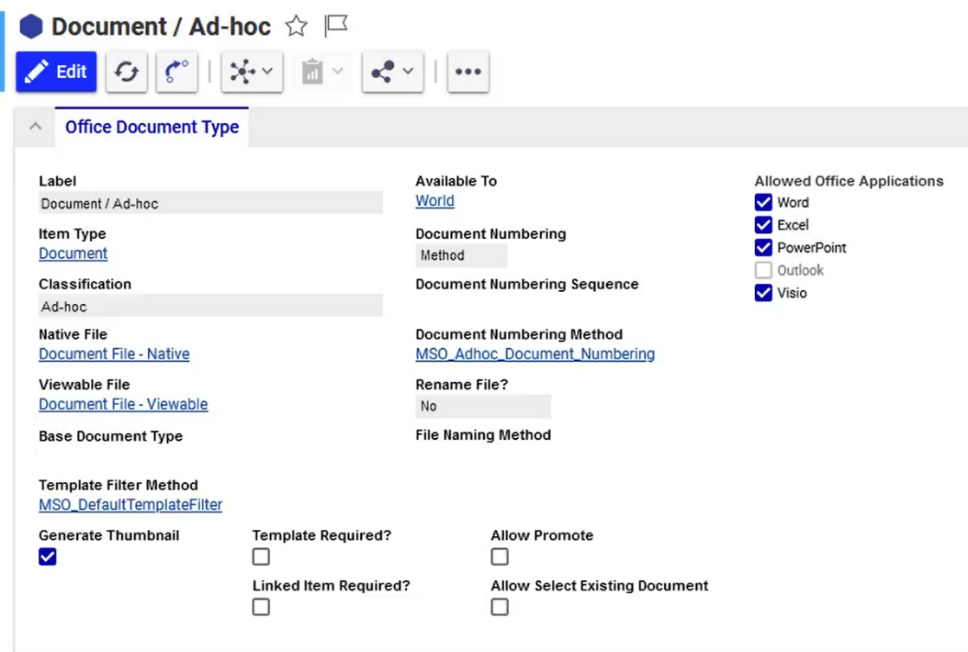
You will then see the Office Document Type form.
-
Label: This is the name of the Document Type that users see. It can be any text string that makes sense for a company. By default, the value of Label will be automatically set as the combination of ItemType and Classification (as shown above), but it can be changed by typing something else in the Label field.
-
Item Type: The name of the base ItemType used to manage Office documents. This can be any ItemType in the system.
-
Classification: (Optional) A specific Classification Type to use Classification to differentiate Document Types. If left blank, the base ItemType is used without a specific class value.
-
Native File: Specifies the reference to the location of the native Office file (.docx, etc.) relative to the base ItemType. This can be either a relationship to File, a null relationship with an item property with a source File, or a property of type Item with source File. The value used to specify this is an Office Document Reference. Read the Office Document References section for details.
-
Viewable File: This specifies the reference to the location of the viewable Office file (.pdf, etc.) relative to the base ItemType.
-
Base Document Type: (Optional) Shows the name of another Office Document Type used as the basis for Property Mapping and Valid Linked Items settings. Refer to the Base Document Type section for details.
-
Template Filter Method: This allows setting the desired logic to determine which templates are available for selection by the user during the document creation process. The Template Filter Methods provided by default are intended to give administrators examples of how to set this up. For example, the MSO_ReleasedTemplateFilter Method only allows users to select Released templates during creation.
-
Generate Thumbnail: This controls whether the thumbnail will generate on the Document Item form in Aras Innovator each time the item is saved.
-
Template Required?: This controls whether the user will be forced to select a template stored in Aras as the basis for the new document being created when using the New Aras Document command. Certain Document Types should require templates, thus standardizing the document creation process in the organization.
-
Linked Item Required?: This controls whether the user will be forced to select a Linked Item when creating a new document of this type. Certain Document Types, such as a Part or Project, should require using a Linked Item because the document should not exist without a relationship to this Item.
-
Allow Promote: This controls whether the Promote function is available for the Document Type. This should only be enabled if the ItemType corresponding to the Document Type allows manual promotion and is not under the control of a change Item like ECO or DCO. If enabled, the Promote function will be made available both in the Aras ribbon (for manual use) and as part of the Save and Close function, for promoting after work is complete.
-
Allow Select Existing Document: When this checkbox is selected, users can select an existing Document Item, create a new file, and link the two instead of creating a new document of a particular type. Users can then use the Document Number associated with the existing Document Item instead of generating a new Document Number.
Note: If this checkbox is not selected, users cannot use an existing document.
-
Available To: This specifies a single Identity that has access to the Document Type. Any user who belongs to this Identity can create documents of this Type. Otherwise, the user will not see the corresponding Document Type when creating a new document.
-
Document Numbering: This allows setting one of three options for controlling the numbering of Aras Documents used to manage Office files: Method, Sequence, or Manual. Method means that you will define an Aras Method to define the logic for the Document Number. Sequence means you are going to use an Aras Sequence directly. Manual allows end users to enter the Document Number at the creation time. If Sequence is selected, the desired Sequence must be entered in the next field. If Method is selected, the desired Method must be entered in the following field.
-
Document Numbering Sequence: If Document Numbering is set to Sequence, this field must include the name of the Aras Sequence to be used to define Document Numbers.
-
Document Numbering Method: If Document Numbering is set to Method, this field must include the name of the Aras Method to be used to define Document Numbers. This approach provides more flexibility than Sequence since any desired logic can be used. The Document Numbering Methods provided by default are intended to give administrators examples of how to set this up. For example, the Method MSO_Product_Document_Numbering includes the following logic:
The Method approach provides additional logic that allows the Document Number to be based on the Part Number if a Linked Part exists.
-
Rename File?: This setting controls whether the Office file being saved into Aras (or being newly created) will be renamed or left as-is. Valid options are:
-
File Naming Method: If Rename File? is set to Method, this field must include the name of the Aras Method to be used to define the file name. This approach provides more flexibility, like Method for Document Numbering. The File Naming Methods provided by default are intended to give administrators examples of how to set this up. For example, the Method MSO_Product_File_Naming retrieves the value of the Document Number and appends the dash character and the entered Document Title (if any) to it. For example:
The Method approach provides additional logic that allows the file name to be more descriptive.
-
Allowed Office Applications: This field specifies which Office application the Document Type applies to.
Note: Aras Office Productivity Connector currently supports Word, Excel, and PowerPoint.